
USB ANYWHERE #F5U203EA - USB adapter BELKIN - Free user manual and instructions
Find the device manual for free USB ANYWHERE #F5U203EA BELKIN in PDF.


| Product type | USB OTG (On-The-Go) Adapter |
| Brand | BELKIN |
| Model | USB Anywhere #F5U203EA |
| Interface | USB 2.0 (compatible with USB 1.1) |
| Maximum data rate | 12 Mbps (full speed) |
| Power supply | 3 AAA batteries (alkaline or rechargeable) or AC adapter DC 5 V / 1.5 A - 2.6 A |
| Battery types | AAA (LR03) - not included |
| Power consumption | Varies depending on devices; up to 2.6 A with adapter |
| Operating temperature | 5 °C to 45 °C |
| Storage temperature | -40 °C to 65 °C |
| Operating humidity | 30 % to 85 % |
| Maximum altitude | 2133.6 meters |
| Main functions | Transfer and copy files between two USB mass storage devices without a computer |
| Copy modes | Full disk (Full) or root directory (Root) |
| LED indicators | Source, target, successful copy (green V), low battery, error (red) |
| Buttons and controls | On/Off, Copy, Reset, Full/Root switch |
| Package contents | USB Anywhere, AC adapter (5 V / 1.5 A - 2.6 A), user manual |
| Warranty | Manufacturer's lifetime warranty (free replacement) |
| Estimated dimensions | Approximately 10 x 6 x 2 cm |
| Estimated weight | Approximately 100 g (without batteries) |
| Device compatibility | USB mass storage devices (USB flash drives, external hard drives, MP3 players, digital cameras) - USB 1.1/2.0 |
Frequently Asked Questions - USB ANYWHERE #F5U203EA BELKIN
User questions about USB ANYWHERE #F5U203EA BELKIN
0 question about this device. Answer the ones you know or ask your own.
Ask a new question about this device
Download the instructions for your USB adapter in PDF format for free! Find your manual USB ANYWHERE #F5U203EA - BELKIN and take your electronic device back in hand. On this page are published all the documents necessary for the use of your device. USB ANYWHERE #F5U203EA by BELKIN.
USER MANUAL USB ANYWHERE #F5U203EA BELKIN
Congratulations and thank you for purchasing the Belkin USB Anywhere.
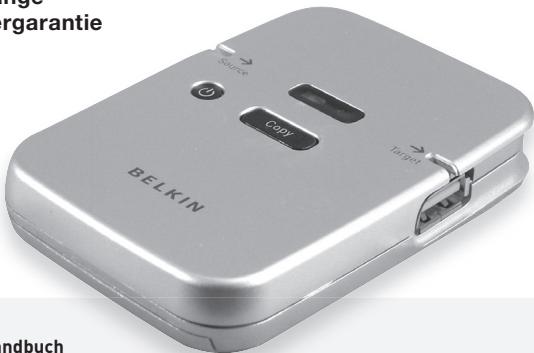
USB Anywhere is a multi-featured USB storage bridge. It has been designed to transfer data between two USB Mass Storage Class compliant devices—without the need for a PC. It is a perfect solution for anyone who wants to copy data, images or music from pen drive to pen drive, flash card to USB storage devices, MP3 player to MP3 player, or even from digital cameras to USB external harddisks. USB Anywhere supports USB 1.1 and USB 2.0 devices.
Features
- Share data between any two Mass Storage Devices without a computer
- Easy copy/Transfer files with just one click of the button
- Compliant with OTG supplement Rev. 1.0 and USB specification version 2.0 for full-speed (12Mbps) USB host and device
- Support USB storage devices with USB Mass Storage Device Class compliance
- One Power Button
- One Reset Button
- Mode switch for Full disk or Root directory copy
- Uses 3 AAA alkaline batteries or power supply
Operating Environment
- Operating Temperature: 5 - 45^
- Shipping and Storage Temperature: -40 -65°C
- Operating Humidity: 30% - 85%
- Altitude: 0 to 7000 feet
Package Includes
- USB Anywhere
- Power Supply (DC 5V/1.5A-2.6A)
-User manual
Getting Started
- Install three AAA alkaline or rechargeable batteries (batteries not included) or plug in the AC power adapter. Please note: Some MP3 players will require additional power in which case the AC power adapter has to be plugged in.
- Press the Power button to turn the USB Anywhere on.
Copying all data files from the source device: Full Mode
- To copy ALL files from the source device to the target device, move the Full/Root switch in the "Full" position.
- Connect your source device. The source LED will pulse with a blue light until the device is recognized. Once the device is recognised, the LED will then light up with a solid blue light. If the source LED turns red, the attached device is not a suitable source device.
- Before connecting your target device, make sure the target device has sufficient unused memory space for the files you are about to transfer. It is possible for the source device to have a higher storage capacity than the target device. However, the files that are to be transferred must not exceed the unused memory space on the target device.
- Connect your target device. The target LED will pulse with a blue light until the device is recognized. Once the device is recognised, the LED will then light up with a solid blue light. If the target LED turns red, the attached device is not a suitable target device or does not have enough memory space available for the files you are about to transfer.
- Press the Copy button to transfer data from the source device to the target device. The source and target LED will start pulsing for the duration of the data transfer.
- Once the data transfer is complete, the source and target LED will stop pulsing and the LED in the shape of a checkmark (√) will light up green.
Copying files in the root directory: Root Mode
Root directory: the top directory in a file system. The root directory is provided by the operating system and has a special name. For example, in DOS systems the root directory is called }.
- To copy only the file(s) in the root directory from the source device to the target device, move the Full/Root switch on the USB Anywhere into the "Root" position.
- Connect your source device. The source LED will pulse with a blue light until the device is recognized. Once the device is recognized, the LED will then show a solid blue light. If the source LED turns red, the attached device is not a suitable source device.
- Before connecting your target device, make sure the target device has sufficient unused memory space for the files you are about to transfer. It is possible for the source device to have a higher storage capacity than the target device. However, the files that are to be transferred must not exceed the unused memory space on the target device.
- Connect your target device. The target LED will pulse with a blue light until the device is recognized. Once the device is recognised, the LED will then light up with a solid blue light. If the target LED turns red, the attached device is not a suitable target device or does not have enough memory space available for the files you are about to transfer.
-
Press the Copy button to transfer data from the source device to the target device. The source and target LED will start pulsing for the duration of the data transfer.
-
Once the data transfer is complete, the source and target LED will stop pulsing and the LED in the shape of a checkmark (√) will light up green.
Data transmission errors
If the LED in the shape of a checkmark () turns red during copying, this means that a data transmission error has occurred. The copy was not successful. To continue, please carry out the following:
- Press the reset button.
- Check if the target device has sufficient unused memory space to hold the files you wish to transfer.
- Repeat the instruction for copying files as described previously.
Make sure to test all your source and target devices before first use
In some exceptional cases it is possible that the USB Anywhere indicates a correct data transfer when in fact the files have not been transferred. In this case your source or target device is not compatible with the USB anywhere and they should not be used together.
When you first use the USB Anywhere, please test all your source and target devices for compatibility by copying a file from the source to the target device and checking the copied file. When the transfer is successful, your device is fully compatible.
Low battery indicator
The LED in the shape of a battery indicates the power status of your batteries. When the LED lights up, this means that the batteries have sufficient power for operation of the USB Anywhere. If the LED does not light up when you switch on the USB Anywhere, or indeed shuts off during operation, you will need to replace the batteries with a new set. The included power supply can also be used as an alternative to batteries.
Automatic power shutdown function
The USB Anywhere will shut down automatically after 30 seconds if it is not in use or after a device is unplugged. If you choose not to use batteries, the USB Anywhere will shut down once it is unplugged from the power supply.
End file transfer
If you wish to interrupt the data transfer process, simply press the Reset button on the USB Anywhere. The USB Anywhere will stop the transfer and will return to starting position. Any files that were already transferred prior to the interruption will remain on the target device.
Data files on the target device
Transferring data from the source device to the target device does not overwrite any existing data on the target device. With each new transfer operation, a new folder will be created which will hold the newly transferred data.
Transfer of hidden or secured files
The USB Anywhere will not copy any hidden or secured data from the source device to the target device. Such protected data can include MP3 files.
Belkin lifetime product warranty
For the life of the product, Belkin warrants that this device shall be free of defects in design, assembly, material and workmanship (free replacement).

Belkin Ltd.
Express Business Park
Shipton Way, Rushden
NN10 6GL, United Kingdom
+44 (0) 1933 35 2000
+44 (0) 1933 31 2000 fax
Belkin B.V.
Boeing Avenue 333
1119 PH Schiphol-Rijk, The Netherlands
+31 (0) 206547300
+31 (0) 20 654 7349 fax
Belkin Tech Support
Europe: 00 800 223 55 460
Belkin GmbH
Hanebergstrasse 2
80637 Munich, Germany
+49(0)891434050
+49 (0) 89 143405 100 fax
Belkin SAS
130 rue de Silly
92100 Boulogne-Billancourt
France
+33(0)141031440
+33 (0) 1 41 31 01 72 fax
Assistance Technique Belkin
Europe:0080022355460
Belkin GmbH
Hanebergstraße 2
80637 Munich, Allemagne
+49(0)891434050
+49 (0) 89 143405 100 fax
Belkin SAS
130 rue de Silly
92100 Boulogne-Billancourt
France
+33(0)141031440
+33 (0) 1 41 31 01 72 fax
Lebenslange Herstellergarantine
Einleitung
- Features
- Operating Environment
- Package Includes
- Getting Started
- Copying all data files from the source device: Full Mode
- Copying files in the root directory: Root Mode
- Data transmission errors
- Make sure to test all your source and target devices before first use
- Low battery indicator
- Automatic power shutdown function
- End file transfer
- Data files on the target device
- Transfer of hidden or secured files
- Belkin lifetime product warranty
- Belkin Ltd.
- Belkin B.V.
- Belkin Tech Support
- Belkin GmbH
- Belkin SAS
- Assistance Technique Belkin
- Lebenslange Herstellergarantine
- Einleitung
Brand : BELKIN
Model : USB ANYWHERE #F5U203EA
Category : USB adapter